
GTA San Andreas Save File Location on Android
Have you ever opened GTA San Andreas on your Android phone and discovered that your saved progress is missing? Perhaps you changed phones, reinstalled the game, or want to move a saved game to another installation. Before starting the story again, it is worth checking whether your existing save files are still available.
For the classic Android version, the usual save location is inside the game’s folder under Android/data. However, the exact location can depend on the game edition, package name, and installation. Newer Android versions also restrict access to certain folders, which can make finding these files more difficult.
This guide explains where GTA San Andreas saves are stored on Android, how to locate saves in the original game and MOD APK, and how to back up or restore your progress without accidentally deleting it.
What Are GTA San Andreas Save Files Stored on Android?
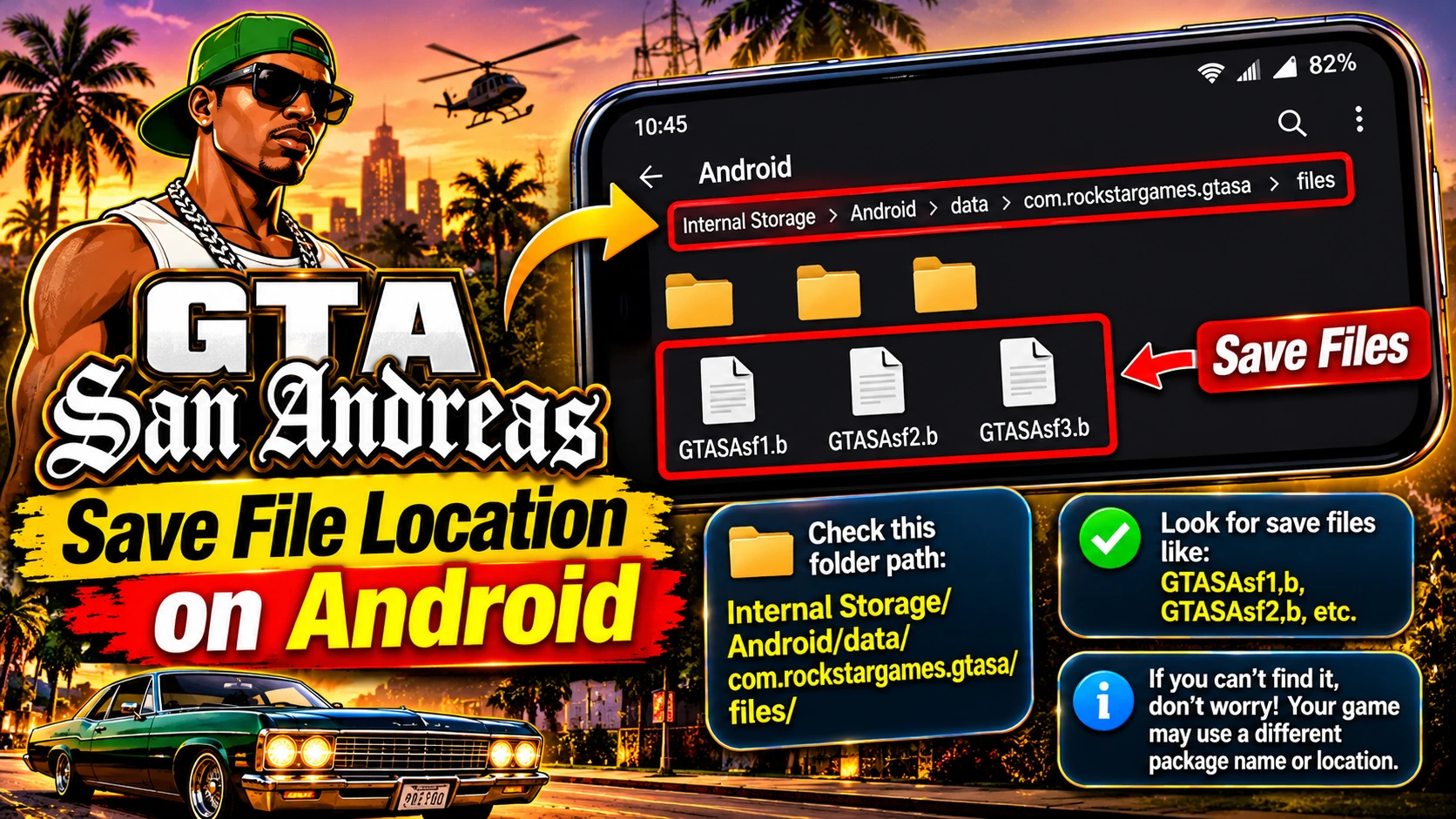
For the classic Android release using the standard Rockstar package name, the common save directory is: Internal Storage/Android/data/com.rockstargames.gtasa/files/
This is the first location to check if you are looking for your saved progress. You can open your phone’s file manager, navigate to internal storage, and follow the folder path.
The save files for classic versions commonly use names such as GTASAsf1.b, GTASAsf2.b, and similar numbered files. These names represent different save slots. The exact files present depend on your game version and saved progress. <Cite refs={[“turn726537search0”]}/>
If you cannot find the folder, do not assume your progress is gone. Your installation may use a different package name, a different edition, or a storage location that your file manager cannot access.
Android Version Differences
The process of locating GTA San Andreas saves is not the same on every Android phone. The game version and Android’s storage permissions both affect which folders you can access.
| Android Version | What to Expect |
| Android 10 and older | File access may be easier, depending on the device and file manager |
| Android 11 | Restrictions on accessing Android/data became more significant |
| Android 12 | Many file managers continue to face restrictions on protected folders |
| Android 13 and newer | Access depends on Android’s restrictions, the file manager, and device-specific behavior |
On older devices, you may be able to open the save directory directly. On newer phones, the folder may appear empty, inaccessible, or blocked even when the game is installed correctly.
The important point is that a restricted folder does not necessarily mean your save files have disappeared. Check the game edition and package name before trying more complicated solutions.
GTA San Andreas Original Game Save Location
If you installed the classic GTA San Andreas through Google Play, start by checking the standard Rockstar directory:
Android/data/com.rockstargames.gtasa/files/
Open your phone’s file manager and follow these steps:
- Open Internal Storage.
- Find the Android folder.
- Open data.
- Locate com.rockstargames.gtasa.
- Open files and look for the saved-game files.
If your file manager allows access, you can copy the relevant files to another folder for backup.
The official mobile release also advertises cloud-save support for eligible Rockstar Social Club members. If you previously enabled and used this feature, check whether your progress is available through the game’s supported cloud-save options. Availability can depend on your edition and account setup. <Cite refs={[“turn726537search2”]}/>
One important warning: do not uninstall the game just because you cannot see the save directory. First, try to locate the files or confirm that your cloud saves are available.
GTA San Andreas MOD APK Save File Location
MOD APK users often face a similar problem, but the standard folder path may not work for every modified version.
Some MOD APKs retain the original package name, com.rockstargames.gtasa, so their save files may use the same directory as the classic game. Other builds may use a different package name, depending on how the APK was modified.
If the usual folder is missing, check the following:
- Open your phone’s app settings and select GTA San Andreas.
- Look for the app information to identify the installed version and available storage details.
- Check the MOD APK’s documentation for its package name and save location.
- Search accessible game folders for files with names such as GTASAsf1.b.
Do not assume that every MOD APK stores its saves in the same place. Modified versions can also use different game builds, and a save created in one version may not work correctly in another.
Before replacing a MOD APK, copy any accessible save files to a separate folder. If the new version has a different package name or incompatible save format, the game may not recognize the old progress.
How to Access GTA San Andreas Saves on Android 11, 12, and 13+
Newer Android versions restrict access to parts of the Android/data directory. This is one reason players sometimes cannot locate their GTA San Andreas saves using an ordinary file manager.
Try these methods in order.
Method 1: Use Your Phone’s File Manager
Open your device’s built-in file manager and navigate to Internal Storage > Android > data. If the phone permits access, locate the GTA San Andreas folder and open its files directory.
Some devices allow limited access, while others block the folder entirely. If you see an access-denied message, move to the next method rather than repeatedly trying the same action.
Method 2: Connect Your Phone to a Computer
A computer may provide another way to inspect accessible storage.
- Connect your phone to a computer with a USB cable.
- Unlock your phone and select File Transfer if prompted.
- Open the phone’s storage on the computer.
- Navigate to the GTA San Andreas directory if it is accessible.
- Copy the save files to a folder on your computer.
Access can still vary by device and Android version, so this method is not guaranteed to expose every protected folder.
Method 3: Check Compatible File-Management Tools
Some Android file-management tools offer additional access methods on supported devices. Their capabilities depend on the Android version, manufacturer restrictions, and permissions granted.
Do not disable security protections or root your phone just to retrieve a game save unless you fully understand the risks. If the save data is stored in a protected private application directory, ordinary file managers may not be able to access it.
How to Back Up GTA San Andreas Save Files
Backing up your progress before reinstalling or updating the game can save you from losing hours of gameplay. The safest approach is to make a separate copy before changing anything.
Follow these steps:
- Open the GTA San Andreas save directory, if accessible.
- Identify the save files, commonly named GTASAsf1.b, GTASAsf2.b, and similar.
- Select the relevant files or copy the entire accessible save directory.
- Create a separate folder named something like GTA SA Save Backup.
- Copy the files into that folder.
- For additional protection, transfer another copy to a computer or another secure storage location.
Keep the original files untouched until you confirm that the backup works. If you use cloud saves in a supported edition, check that your latest progress has actually synchronized rather than assuming it has.
Important: Do not clear the game’s storage or uninstall it before backing up accessible saves. Clearing app data can remove locally stored progress.
How to Restore GTA San Andreas Save Files on Android
Restoring a save file requires more care than simply copying it into a folder. The file must be placed in the correct location, and it should be compatible with the installed game version.
Step 1: Install the Compatible Game Version
Install the same edition and, where possible, the same game version that created the save. Classic GTA San Andreas and the Definitive Edition do not necessarily use interchangeable save files.
Step 2: Locate the Save Directory
For the classic release using the standard package name, check:
Android/data/com.rockstargames.gtasa/files/
If your game uses another package name, locate the corresponding directory instead.
Step 3: Copy the Backup Files
Copy the backed-up save files into the correct directory. If the game has already created save slots, avoid overwriting existing files unless you intend to replace them.
Step 4: Open the Game
Launch GTA San Andreas and check the load-game menu. If the save appears, load it and confirm that your progress is correct.
Step 5: Troubleshoot If the Save Is Missing
If the game does not recognize the file, check the directory, filename, game edition, and save compatibility. Restore the original files if necessary and avoid repeatedly overwriting your backup.
How to Restore GTA San Andreas Save Files on Android
Several small mistakes can make a working save appear lost or prevent the game from loading it.
| Common Mistake | How to Avoid It |
| Checking the wrong folder | Confirm the game’s package name and edition |
| Assuming Android 13 deleted the save | Check whether the folder is simply inaccessible |
| Uninstalling before making a backup | Copy accessible saves before removing the game |
| Renaming save files unnecessarily | Preserve the original filenames |
| Mixing different game editions | Use a save compatible with the installed version |
| Overwriting the wrong save slot | Keep a separate backup before restoring |
| Clearing app data | Avoid clearing storage when trying to preserve progress |
| Assuming every MOD APK uses the same path | Check the specific build’s package name |
If the game opens but your progress is missing, first determine whether the files still exist. If the files are present, the issue may involve compatibility or the location where the game expects to find them.
Frequently Asked Questions-FAQs
Conclusion
Finding the GTA San Andreas save file location on Android becomes easier once you know which game edition you have and how your phone handles storage access. For the classic release, Android/data/com.rockstargames.gtasa/files/ is the main location to check, but MOD APKs and other editions may differ.
If you are using Android 11, 12, or 13 and cannot open the folder, the restriction may be caused by Android rather than missing game data. Before reinstalling the game or changing versions, back up your accessible saves and confirm compatibility. These simple precautions can help you protect your progress and avoid starting the game all over again.